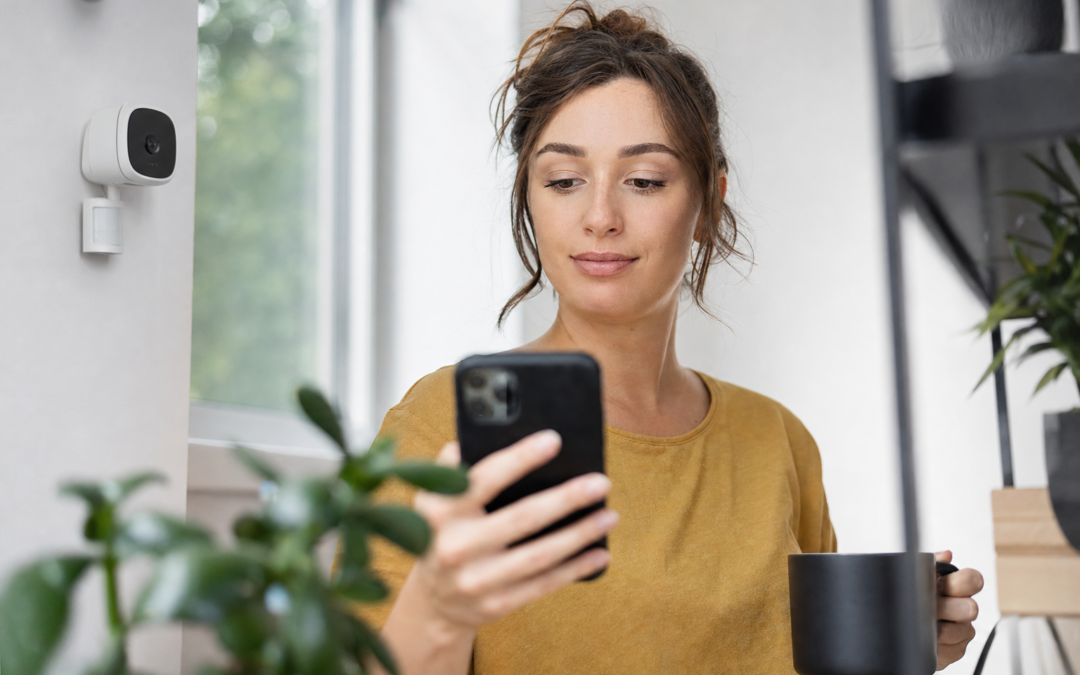
Setting up a smart alarm system is only half the battle when it comes to protecting your home. The true value of these systems is unlocked when you configure your alarm app and notifications in a way that actually fits your daily life. Many homeowners install security tech but wind up ignoring alerts or disabling features because of constant false alarms, poorly timed notifications, or confusing settings. In this guide, you’ll learn practical steps to set up notifications, leverage geofencing and quiet hours, and keep your smart alarm system both effective and unobtrusive.
We’ll focus on actionable advice for US households, drawing from real-world scenarios. Whether you’re just getting started or fine-tuning a system you already own, these tips will help ensure you don’t miss important alerts—and don’t get overwhelmed by noise. For more on specific devices and best practices, be sure to check out our alarms and smart security hub.
Why Smart Alarm Notifications Matter
Smart alarm systems are engineered to keep you informed about what’s happening at home, whether you’re inside, at work, or on vacation. But if you receive dozens of irrelevant notifications daily, you’ll quickly start ignoring them—defeating the whole purpose. A well-tuned notification setup ensures you’re only alerted when it matters, such as during attempted break-ins, environmental hazards (like smoke or CO), or unexpected activity around your property.
- Immediate awareness: Receive real-time alerts for events that need your attention.
- Actionable information: Get context-rich notifications so you know what’s happening and what to do next.
- Reduced alarm fatigue: Avoid constant interruptions for harmless events, pets, or routine family comings and goings.
This balance makes your alarm system something you actually use, rather than an annoyance you ignore.
Understanding Alarm App Notification Types
Most smart alarm apps offer a range of notification options. Knowing what each type means—and when to use them—will help you customize alerts for your lifestyle.
- Push notifications: Instant alerts sent to your smartphone’s notification center. These are usually the fastest way to get critical info.
- Email alerts: Good for archiving or sharing with other household members or off-site caretakers.
- SMS/text messages: Useful as a backup if you’re in an area with poor data coverage or need to reach someone without the app installed.
- Automated calls: Some systems can call you or a list of emergency contacts for high-priority alarms.
Set up each alert type based on the importance of the event and your preferred way to receive urgent news.

Ring Sensors: Glass Break Sensor (newest model) Review — Practical categories from Ring, summarized from hub features and listed measurements. Key figures include 2 , 53, 2.
How to Avoid Notification Overload
Too many alerts can be just as bad as none at all. The key is to filter out routine or low-priority events and reserve urgent notifications for true emergencies. Here’s how:
- Customize alert triggers: Turn off notifications for things like doors opening during normal hours, but keep them on for late-night activity or when the system is armed.
- Group alerts: Some apps allow you to bundle less urgent notifications into a daily summary.
- Set up event-specific rules: For example, only get notified about garage door activity when you’re not home, or restrict camera motion alerts to certain zones.
Spend time exploring your app’s notification settings menu—most leading brands offer granular controls that make a big difference.
Leveraging Geofence-Based Alerts
Geofencing uses your smartphone’s location to automatically arm or disarm your system and tailor notifications based on your proximity to home. This feature is a game-changer for reducing unnecessary alerts and making your system “just work.”
- Automatic arming/disarming: Set your alarm to arm when you leave a defined area around your home, and disarm when you return. No more forgetting to set the alarm.
- Context-aware notifications: Only receive entry/exit alerts when you’re not home.
- Family and guest settings: Many systems allow multiple users, so you can avoid alerts when a trusted person enters while you’re away.
To set up geofencing, enable location permissions for your alarm app, define your home’s geofence radius, and test the feature with a few practice runs. Most users find this dramatically reduces false alarms and unnecessary pings.

Hosmart 1/2 Mile Driveway Alarm Review — A wireless driveway motion kit with a long claimed receiving range, expandable sensors, and weather-minded outdoor housing — built for property alerts, not monitored security.
Setting Up Quiet Hours and Notification Schedules
Quiet hours let you suppress non-critical alerts during times when you don’t want to be disturbed, such as overnight or during family movie night. This is especially useful for motion sensors or cameras that might otherwise generate a lot of activity-based notifications.
- Schedule notification silencing: Use your app’s scheduling tool to block non-urgent alerts (like routine motion or door activity) during set hours.
- Always allow critical alerts: Ensure that fire, CO, break-in, or panic alarms still break through, even during quiet hours.
- Customize by sensor: Silence certain zones (like the living room after midnight) while keeping perimeter sensors always active.
Scheduling notifications ensures important alerts get your attention, but your phone isn’t buzzing all night for harmless activity.
Fine-Tuning Sensor Sensitivity and Zones
Most modern alarm sensors—especially motion and glass break detectors—allow you to fine-tune their sensitivity and define specific zones to monitor. Taking time to adjust these settings reduces false alarms and ensures notifications are meaningful.
- Adjust sensitivity: Lower sensitivity in high-traffic areas to avoid constant alerts from pets or HVAC drafts. Increase sensitivity for windows or rarely used entrances.
- Define detection zones: Use your app’s zone editor (often via camera or motion sensor settings) to focus on vulnerable entry points and ignore less critical areas.
- Test and validate: After making changes, walk through your home to trigger sensors and confirm you’re only receiving desired alerts.
This step is especially important if you have pets, children, or frequent visitors. Most systems let you revisit these settings at any time as your needs change.

Alarm System for Home Security ( ) Review — RenseCum home security systems gear aimed at buyers who want clear specs before they click through. Key figures include 4.3, 3, 1.
Managing Multiple Users and Notification Recipients
Alarm systems are most effective when everyone in the household—or anyone responsible for property security—gets the right notifications. Most smart alarm apps allow you to add multiple users and customize each person’s alert settings.
- Add family, roommates, or caregivers: Grant app access so everyone can receive relevant notifications and take action if needed.
- Assign roles: Some systems allow you to set permissions, so only certain users can arm/disarm or receive sensitive alerts.
- Emergency contacts: Designate trusted friends, neighbors, or a monitoring service to receive alerts if you’re unavailable.
Set up a quick training session for new users so they know how to respond to alerts, silence false alarms, and reach emergency services if needed.
Integrating with Other Smart Home Devices
One of the advantages of modern alarm systems is their ability to work with other smart home devices, adding extra layers of automation and notification options.
- Smart speakers and displays: Get voice or visual alerts through Alexa, Google Assistant, or smart displays placed around your home.
- Smart lights: Program lights to flash or turn on when an alarm is triggered, providing a visual cue in addition to app notifications.
- Automated routines: Use platforms like IFTTT or HomeKit to create custom actions (e.g., unlocking doors for emergency responders when a smoke alarm sounds).
Integrations like these can make alerts more noticeable, especially for users who might miss a phone notification or need accessibility options.
Testing and Auditing Your Notification Setup
Setting up notifications isn’t a one-and-done task. It’s important to test your setup regularly and audit your settings as your household or schedule changes.
- Run simulated alarms: Trigger test events from your app and check which notifications come through, when, and to whom.
- Review notification logs: Most apps keep a record of sent alerts—scan these weekly to spot patterns or missed events.
- Update contacts and schedules: Periodically review who receives alerts and whether your quiet hours or geofence settings need adjustment.
By making periodic check-ins a habit, you’ll catch issues before they become problems and keep your system relevant to your current lifestyle.
Best Practices for Notification Security and Privacy
While notifications are key to home security, they also create a digital trail. Protect your privacy and data by following a few best practices:
- Use strong passwords: Set a unique, complex password for your alarm app and enable two-factor authentication if available.
- Limit sharing: Only add trusted users and avoid sending alerts to shared or public email addresses and numbers.
- Regularly update devices: Keep your app and system firmware up to date to patch security vulnerabilities.
- Review app permissions: Only grant location and notification permissions as needed, and audit them if you change phones or accounts.
These steps ensure your smart alarm system remains a help, not a risk, for your household.
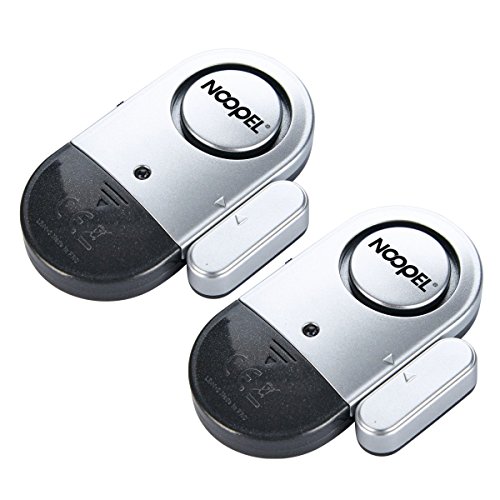
Door Alarms for Kids Safety 120dB Window Alarms for Home Security Review — A Noopel pick in Home Security Systems that focuses on real-world usability Key figures include 0.39 inches, 2 , 3 .
Common Notification Mistakes (and How to Fix Them)
Even experienced users make mistakes with alarm app notifications. Here are some of the most common pitfalls—and how to address them:
- Forgetting to enable critical alerts: Double-check that break-in, fire, and CO alerts are always active, even during quiet hours.
- Overlapping schedules: Conflicting quiet hour or geofence settings can cause you to miss important notifications. Review your rules for overlaps.
- Too many users with full access: Limit admin permissions to prevent accidental disarming or settings changes.
- Ignoring app updates: Outdated software can miss notifications or fail to connect with new phone features.
- Not testing after changes: Always run a test after updating settings to confirm you’re getting the right alerts.
Awareness of these common issues will help you keep your notification setup reliable and stress-free.
When to Upgrade Your Alarm System or App
If you’ve spent time fine-tuning notifications and still find your system lacking, it might be time for an upgrade. Consider these signs:
- Limited notification customization: Older or basic systems may not allow the level of control you need for modern life.
- Incompatible with smart devices: If you can’t integrate with geofencing, smart speakers, or third-party automation, you’re missing out.
- Slow or unreliable alerts: Delayed notifications can defeat the purpose of real-time security.
- Security vulnerabilities: If your system or app is no longer supported by the manufacturer, it’s time to consider a replacement.
Upgrading doesn’t have to mean starting from scratch—many new systems work with existing sensors or can be installed alongside legacy gear. Always research compatibility and user reviews before making the switch.
Final Thoughts: Make Your System Work for You
Smart alarm app and notification setup is a personal process—what works for one household might not fit another. The most important step is regular review and adjustment: as your schedule, family, or home layout changes, your notification setup should evolve too. Don’t be afraid to experiment with settings, test new features, and seek out new integrations.
With thoughtful customization, your smart alarm system will become an active partner in your home security, alerting you only when it matters and giving you peace of mind every day. For more device recommendations and setup guides, visit our hub for alarms and smart security.
Checklist: Smart Alarm App Setup You Won’t Ignore
- Download and update your alarm app: Ensure you’re running the latest version for security and new features.
- Register all household members: Add trusted users, assign app permissions, and set up emergency contacts.
- Enable critical notifications: Turn on push, SMS, or call alerts for break-ins, smoke/CO, and panic alarms.
- Configure notification types for each zone: Customize which sensors or areas generate alerts, and when.
- Set up geofencing: Define your home’s geofence and test automatic arming/disarming.
- Establish quiet hours: Block non-urgent notifications during sleep or key family times.
- Review default motion sensitivity: Adjust to minimize pet or routine movement triggers.
- Test all notification channels: Trigger a test alert and verify you receive it on every device and method you intend to use.
- Document your settings: Save screenshots or write down custom rules for future reference or troubleshooting.
Common Mistakes When Setting Up Alarm Notifications
Even tech-savvy users can make errors that undermine their smart alarm’s usefulness. Here are frequent pitfalls—and how to avoid them:
- Over-notification: Activating every possible alert leads to “alarm fatigue.” Instead, be selective and prioritize real emergencies.
- Ignoring app permissions: If you deny the app access to your phone’s notifications, location, or background data, critical features may not work.
- Forgetting about shared devices: Multiple family members may each need to customize alerts on their own devices—don’t assume your changes sync everywhere automatically.
- Not updating contacts: If emergency contacts change or phone numbers become outdated, you may miss urgent calls or texts.
- Neglecting to test: Failing to run periodic test alerts means you might not realize something’s broken until it’s too late.
- Overlooking app updates: Skipping updates can leave you with buggy notification features or missing security patches.
- Setting and forgetting: As your daily routine changes, revisit your notification schedule, quiet hours, and geofencing to keep alerts relevant.
Maintaining Your Smart Alarm App and Notifications
Regular maintenance ensures your alarm system stays reliable and adapts to changes in your household. Follow these ongoing habits:
- Review alert logs monthly: Check for missed or excessive notifications and adjust settings accordingly.
- Test sensors and notifications quarterly: Trigger test events for each sensor and confirm you receive alerts on all desired devices.
- Update contact lists: Verify emergency contacts, family member access, and device list at least twice a year.
- Keep the app up to date: Enable automatic updates or check for new versions regularly.
- Audit app permissions: Ensure your alarm app retains the necessary permissions after phone OS updates.
- Stay informed about new features: Manufacturers often add new notification types or integrations—review release notes for enhancements you might want.
These steps help prevent gaps in your security and ensure you don’t miss critical alerts due to overlooked settings or expired permissions.
Frequently Asked Questions About Smart Alarm Notifications
How do I stop my alarm app from waking me up at night with non-urgent alerts?
Most smart alarm apps include a “quiet hours” or “do not disturb” feature. Set these for your typical sleep times, and specify which notifications (such as fire or intrusion) can override the silence. Be sure to test this setting to confirm that urgent alerts still break through when needed.
Can I share alarm notifications with a neighbor or caretaker when I’m away?
Yes, many systems allow you to add guest users or temporary contacts. You can assign them specific permissions—such as receiving alerts or accessing camera feeds—without giving full control over your system. Review your app’s sharing settings and always remove temporary users when they’re no longer needed.
What if I travel internationally and don’t have cellular service?
If you expect to be without reliable cell service, enable email notifications or use Wi-Fi calling/SMS apps as a backup. Some systems also allow you to route alerts to a trusted friend or family member temporarily. Consider testing your notification setup before you travel to ensure coverage.
Why am I not receiving notifications after changing phones?
When you get a new phone, you often need to reinstall your alarm app, log in again, and grant notification and location permissions. Double-check that push notifications are enabled and that your user profile in the app is up to date. Also, remove your old device from the list of authorized devices if possible.
How do I reduce false alarms from pets or routine activity?
Most smart alarm apps let you adjust the sensitivity of motion sensors, exclude certain zones, or set up “pet immunity” options. Experiment with these settings and monitor alert logs until you find the right balance of security and convenience. If your system supports AI-powered detection, enable it to help distinguish between humans, animals, and vehicles.
Can I integrate alarm notifications with other smart home devices?
Yes, many leading alarm apps offer integrations with smart speakers, lights, or automation platforms (like Alexa, Google Home, or IFTTT). For example, you can set a routine to turn on all lights when the alarm triggers or receive voice announcements. Check your app’s integrations menu for options and setup guides.
Is it safe to enable location services for geofencing?
While enabling location services is required for geofencing, most reputable alarm apps use secure, privacy-conscious methods to process your location data. Review the privacy policy of your provider, restrict location access to “while using the app” if possible, and only use trusted brands.
Pro Tips for Making Notifications Useful (Not Annoying)
- Use notification previews: Some apps allow you to see a snapshot or brief video clip with the alert, so you can quickly decide if you need to act.
- Leverage smart watches: Pair your alarm app with a smartwatch for silent, on-wrist notifications that you’ll notice even if your phone is silenced.
- Schedule regular “alert reviews”: Set a recurring reminder to check your alert history and tweak settings as your routine or household changes.
- Educate the household: Make sure everyone knows how to use the app, respond to alerts, and what to do in case of a real emergency.
- Combine with camera verification: If your system supports it, require a visual confirmation before triggering a full alarm or contacting authorities—this reduces false dispatches.
With these advanced strategies, your smart alarm system will support your lifestyle—rather than disrupt it.